

How to generate an AI video editing:
Transform any idea into a fully edited, publish-ready video — with your own AI persona, auto-generated scripts, and one-click multi-platform publishing.Step 1: Click "AI Video Editor"
Step 1: Click "AI Video Editor"
From your TrendzSpot AI dashboard, click AI Video Editor to open the production workspace. This is your all-in-one environment for scripting, editing, and publishing AI-generated videos with a custom presenter.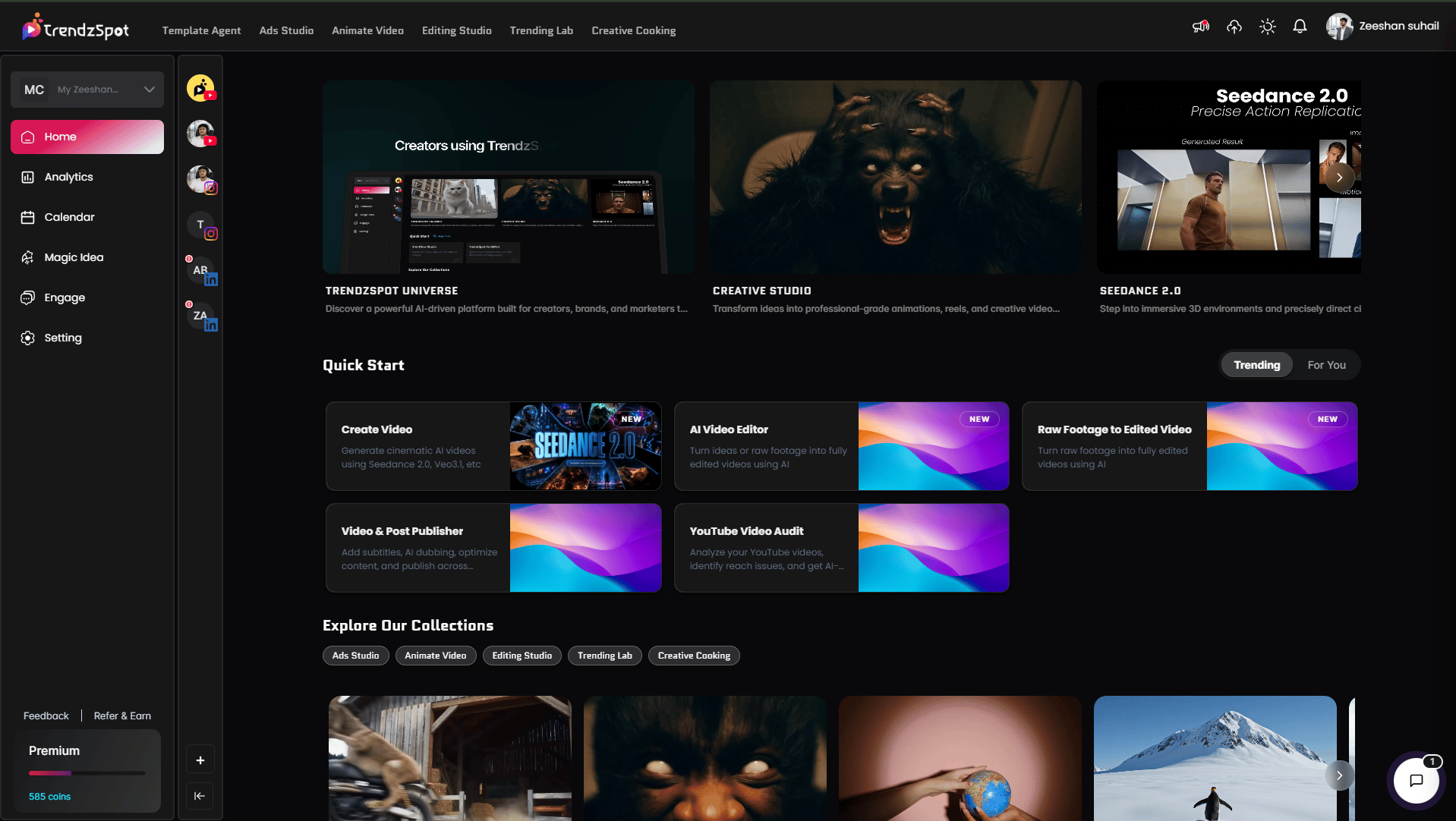
Step 2: Create Your Persona
Step 2: Create Your Persona
Before generating your video, you set up a custom AI presenter — a digital avatar that represents you or your brand on screen.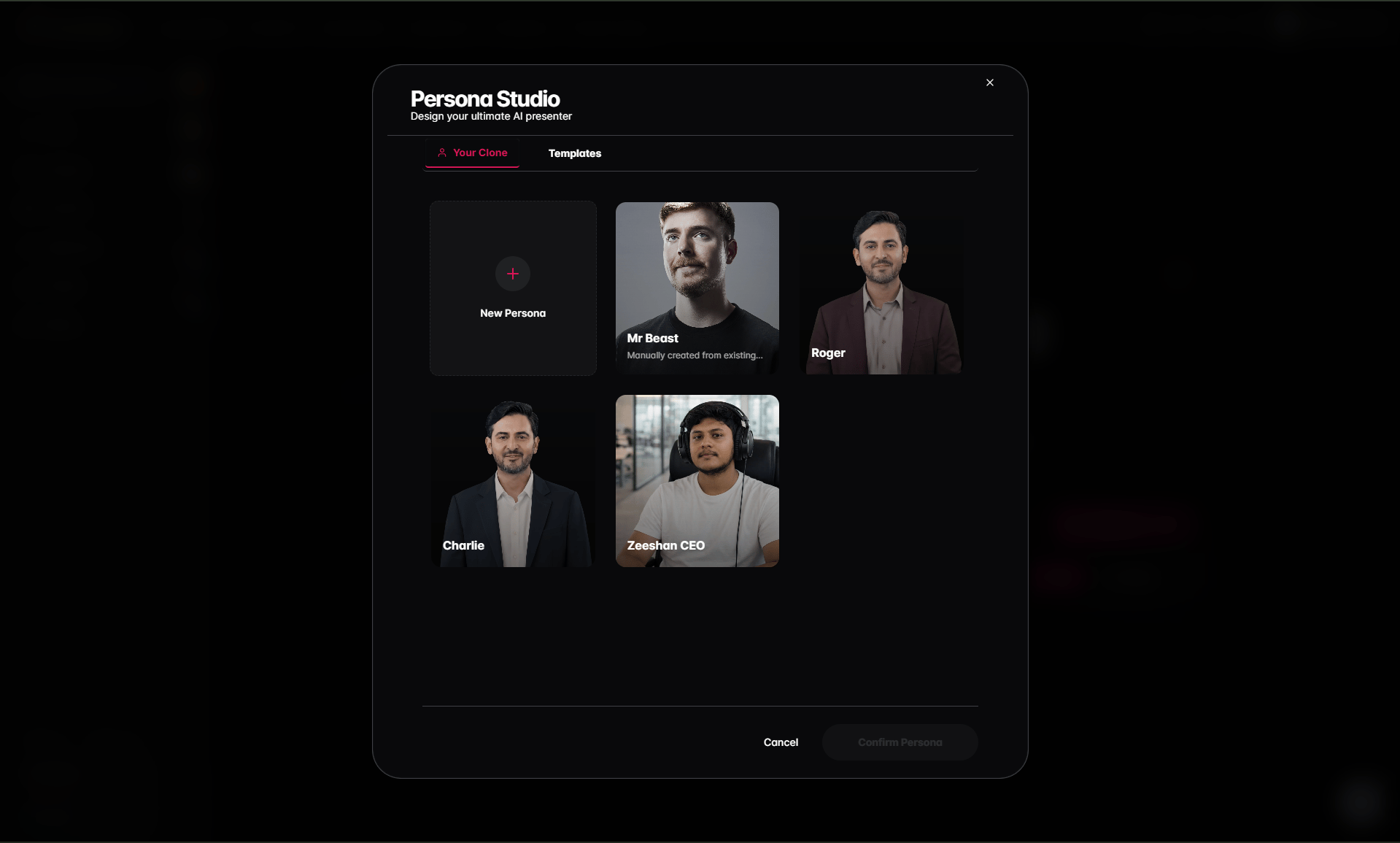
- Persona name—Give your presenter a name that fits your brand identity.
- Description—Briefly describe the persona’s role or style (e.g. “tech reviewer, confident and casual tone”).
- Language—Select the language your persona will speak in.
- Photo — Upload a clear photo of yourself or a brand character. This becomes the visual base for your AI avatar.
- Voice clone — Upload a voice sample so the AI replicates your exact tone, accent, and delivery style.
- Preview avatar—Review how your persona looks and sounds before saving.
Process: Enter persona details → Upload photo → Upload voice clone → Preview avatar → Save Person
Pro tip: Record your voice clone sample in a quiet room with consistent tone. A clean 30–60 second clip produces the most accurate voice replication.
Step 3: Generate Your Video with AI
Step 3: Generate Your Video with AI
You don’t need a script, a storyboard, or any pre-prepared content. Just enter your topic or idea — AI builds everything else.Enter your topic or content plan and the AI automatically creates:Controlling transitions:Highlighting key words or CTAs:Process: Enter topic or video idea → Add media using @ (optional) → Add highlights & transitions (optional) → Select Auto Mode → Choose caption style → Set duration → Generate video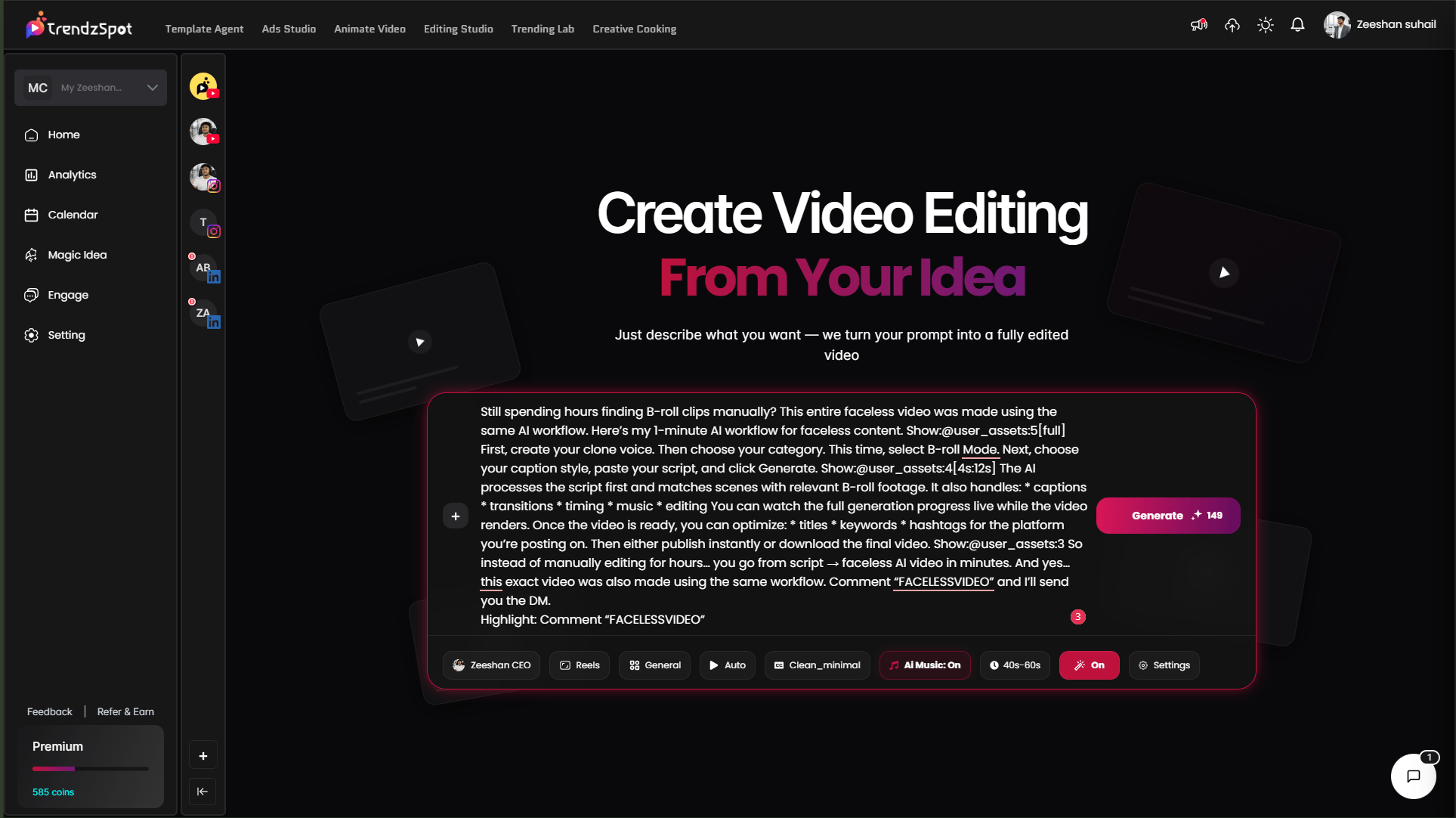
- The full script
- Scene structure
- Hooks to capture attention
- Captions
- Transitions between scenes
Pro tip: Even if you use Auto Mode, add one or two of your own assets using @ — it makes the video feel personal and on-brand rather than fully generic.
Step 4: Review & Generate Your AI Video
Step 4: Review & Generate Your AI Video
Once the script is ready, review the AI-enhanced version before final generation. This is your last chance to tweak wording, reorder scenes, or adjust any inputs.When you confirm, AI automatically builds the complete video by adding: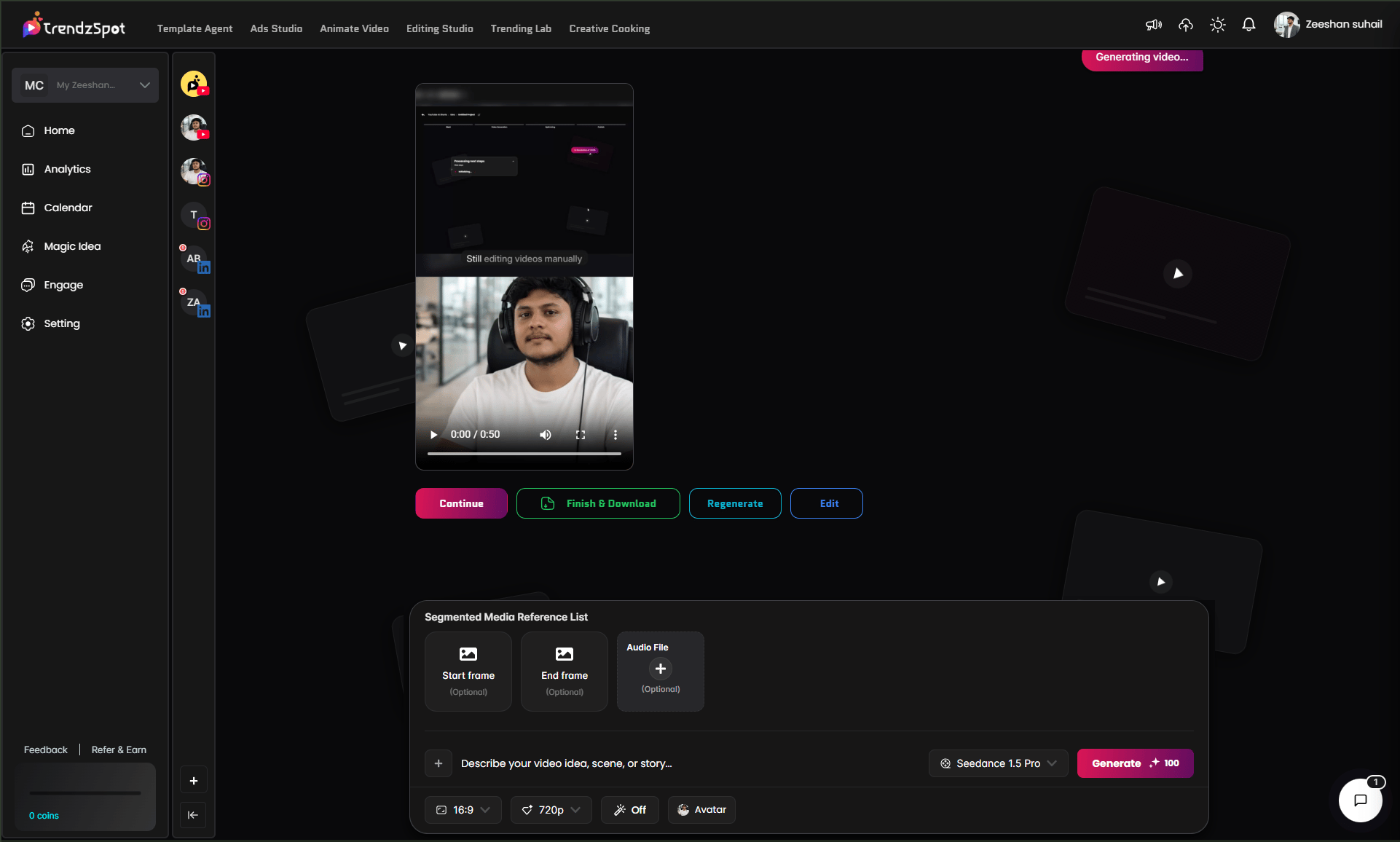
- Captions — synced perfectly to every word
- Transitions — smooth scene changes based on your selections
- B-roll footage — relevant background clips inserted automatically
- Your uploaded media — images and clips placed exactly where you marked them
- Hooks — attention-grabbing opening sequences
- Motion graphics — animated elements that add visual energy
- Highlighted keywords — key words and CTAs visually emphasized on screen
Process:Review enhanced script → Confirm settings → AI adds captions & transitions → AI inserts B-roll and uploaded media → Apply hooks & motion graphics → Highlight key words → Generate final video
Step 4: Optimize the Post
Step 4: Optimize the Post
Before publishing, optimize your video’s metadata to maximize reach and discoverability on every platform.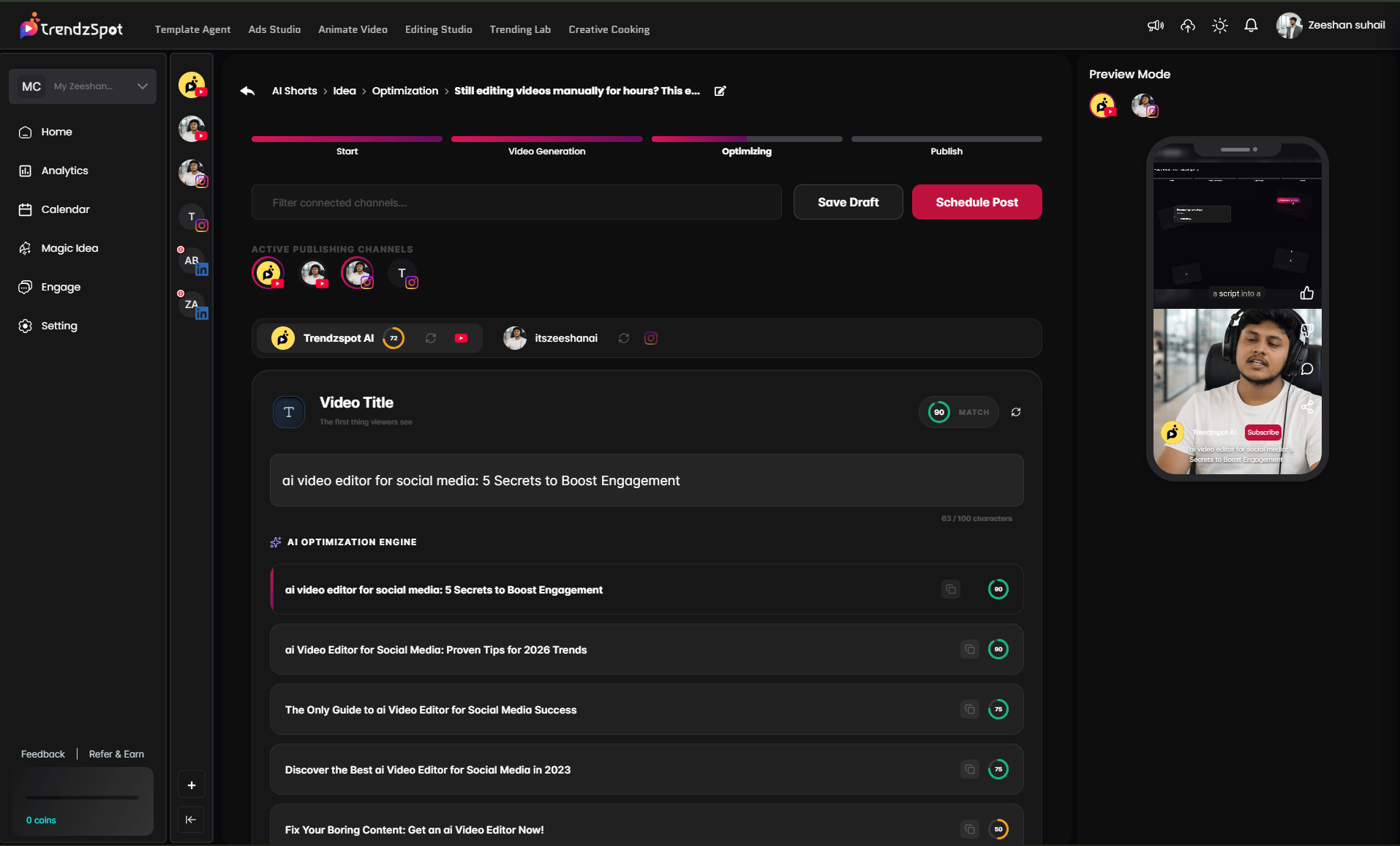
- Title — AI suggests a platform-optimized title based on your prompt and target audience. Edit it to match your voice.
- Description — A full video description is generated automatically, structured for SEO with relevant context and keywords.
- Keywords — Platform-specific tags and keywords are recommended based on your content topic and current search trends.
Pro tip: Don’t skip this step. A great video with a weak title gets buried. Spend 2 minutes reviewing the AI suggestions and customizing them — it directly affects how many people find your content.
Step 5: Publish to Multiple Platforms
Step 5: Publish to Multiple Platforms
With one click, distribute your video across all your connected social platforms simultaneously — YouTube, TikTok, Instagram, and more.No downloading, re-uploading, or switching between apps. Your video, title, description, and keywords are pushed to each platform automatically, formatted correctly for each one.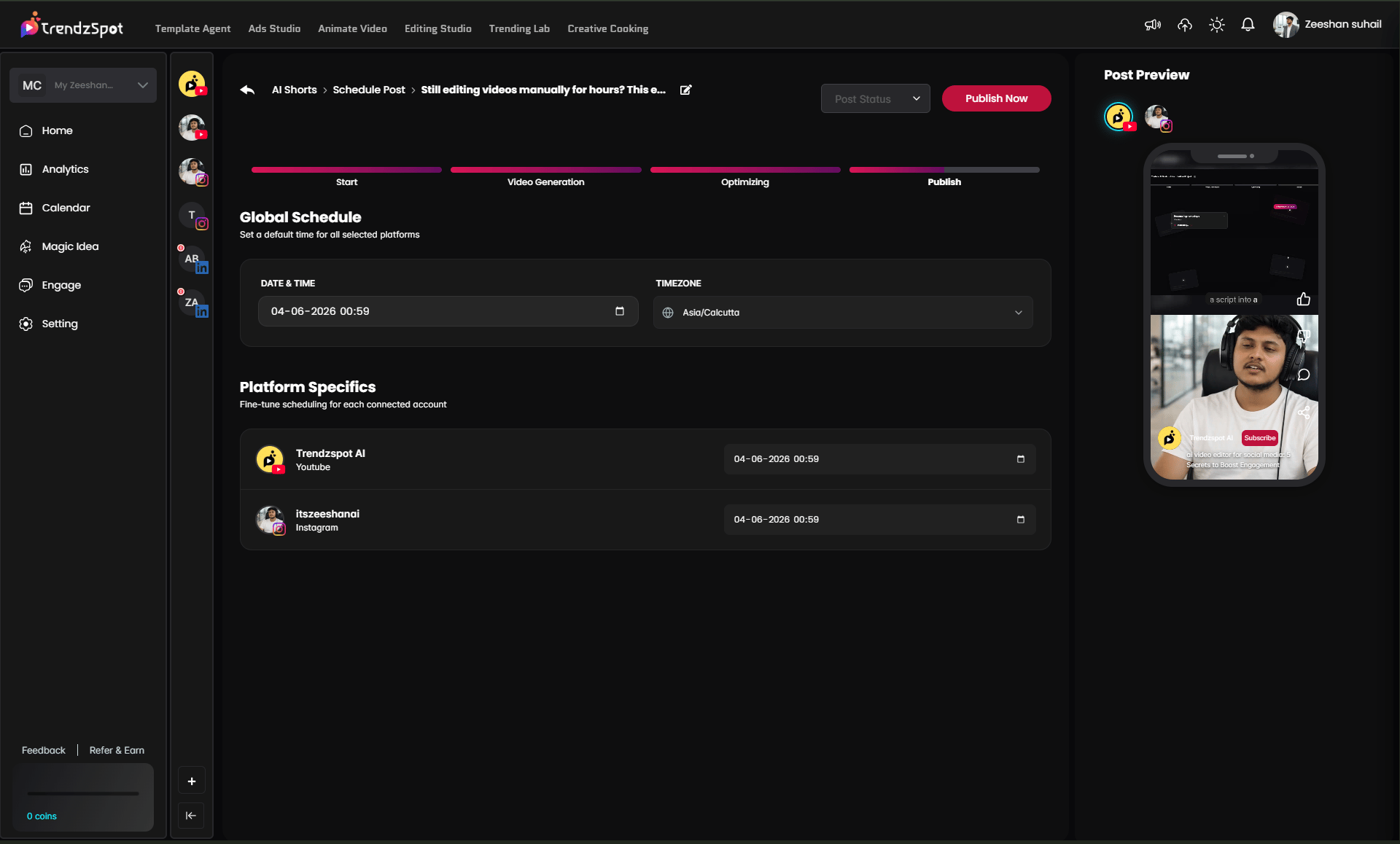
Pro tip: Connect all your social accounts in Settings before you start creating. The moment your video is ready, publishing takes seconds.
Customer Generated:
Next steps
Now that you have your docs running, explore these key features:Connect your social accounts
Link YouTube, TikTok, and Instagram to enable direct publishing without leaving the platform.
Publish across multiple platforms
Distribute a single piece of content to all your channels simultaneously from your AI Board.
Automate with Template Agents
Build reusable AI workflows so your content pipeline runs on autopilot. Set it up once, repeat it forever.
Track performance with AI analytics
Monitor views, watch time, subscriber growth, and revenue trends in one unified dashboard.
The bottom line: Most creators waste 80% of their time on tasks that AI can handle in minutes. TrendzSpot AI Core Tools exist to give you that time back—so you can focus on ideas, not execution.