There are two ways to use this tool:
Flow 1: Optimize a New Video**:**
Use this when you have a new video ready to publish and want AI to generate the best possible title, description, keywords, subtitles, and thumbnail before it goes live.Step 1: Click "Video & Post Publisher."
Step 1: Click "Video & Post Publisher."
From the AI Optimization dashboard, click the Optimize button on the left panel to open the new video optimization workspace.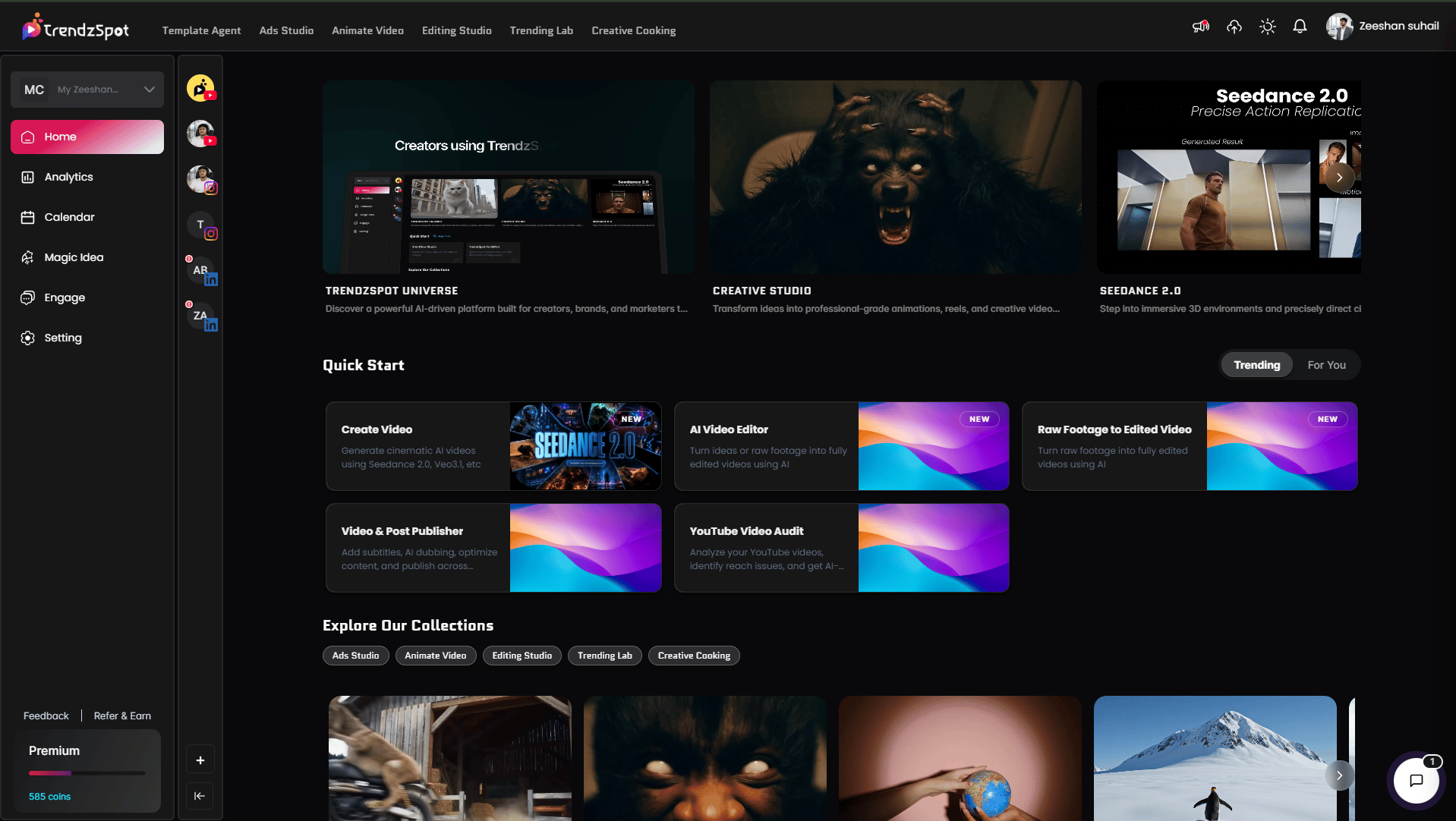
Step 2: Select Your Platforms
Step 2: Select Your Platforms
At the top of the workspace, select one or multiple platforms you want to optimize for — YouTube Long, YouTube Shorts, TikTok, Instagram, and more. You can select all platforms at once and the AI will tailor the metadata specifically for each one.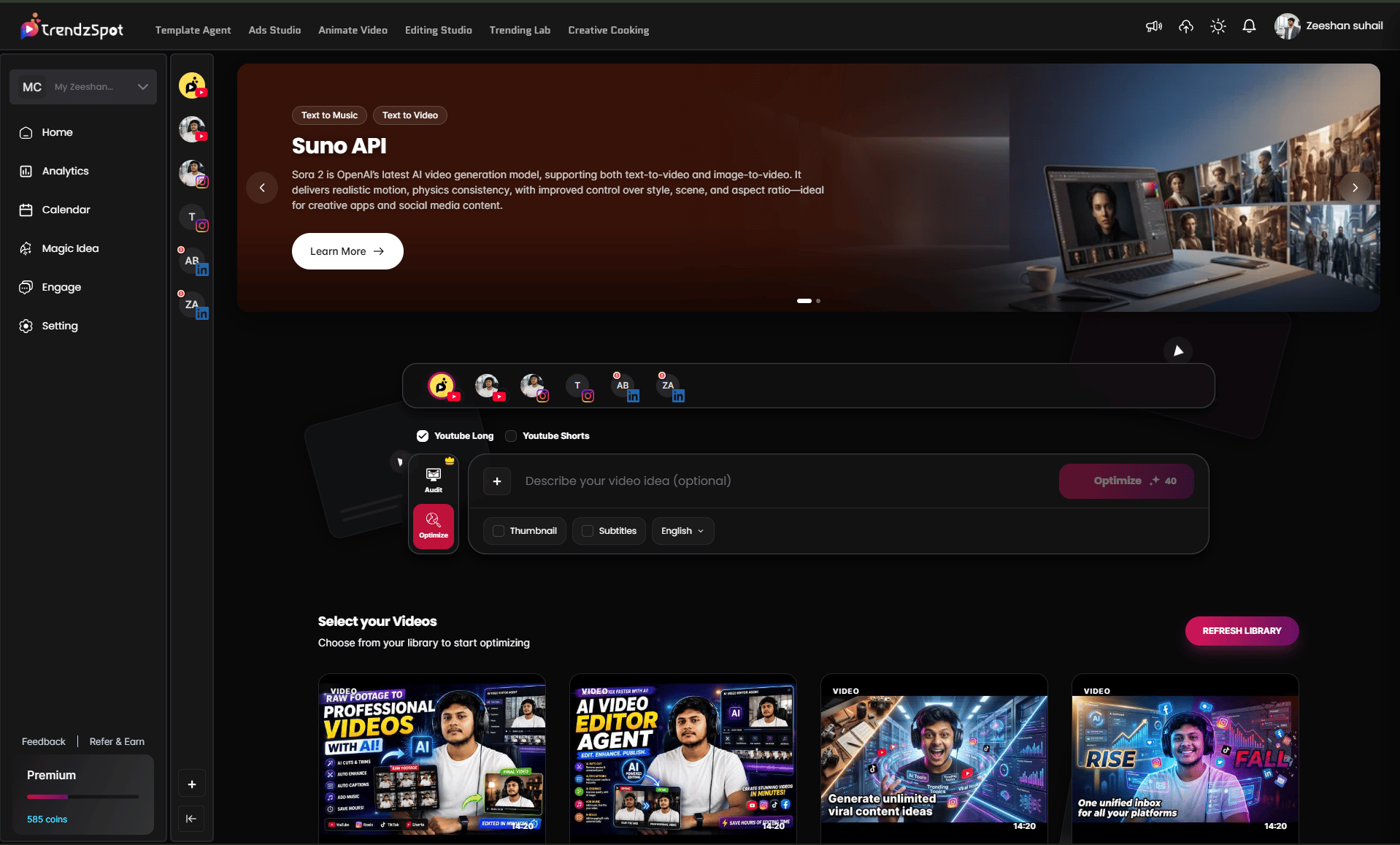

Step 3: Upload Your Video and Describe It
Step 3: Upload Your Video and Describe It
Select or upload your video:
- Choose a video already inside your TrendzSpot AI library, or
- Upload a new file directly from your device
Step 4: Configure Your Settings
Step 4: Configure Your Settings
Before running optimization, set your preferences:Subtitles — Check this box to auto-generate subtitles synced word-by-word to your video audio. Select your language from the dropdown.Thumbnail — Check this box to generate an AI-powered thumbnail. Clicking it opens the thumbnail creator with two options: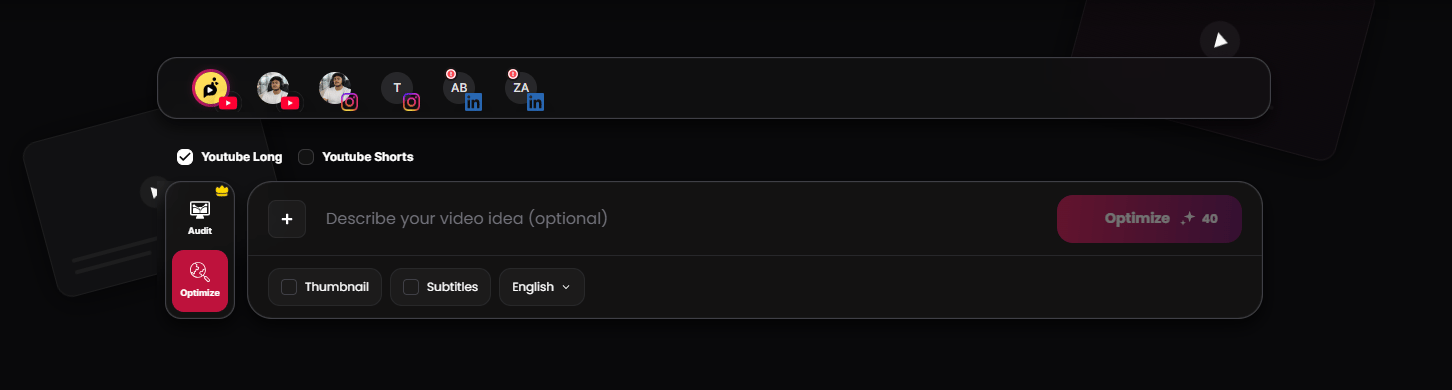
- AI Generate:
- Select a character — Choose an existing persona (Mr Beast, Roger, Charlie, Zeeshan CEO) or create a brand new one to feature in your thumbnail
- Text Overlay — Set to ON, OFF, or AUTO to control whether text appears over the thumbnail
- Scenario / Prompt — Describe the visual scene you want. Example: “Cyberpunk streets, minimalist studio, high energy gaming setup”
- Click Confirm to generate your thumbnail
- External Link — Paste a URL to use an existing image as your thumbnail base
Step 5: Click Optimize
Step 5: Click Optimize
Once everything is configured, click Optimize. AI analyzes your video and generates: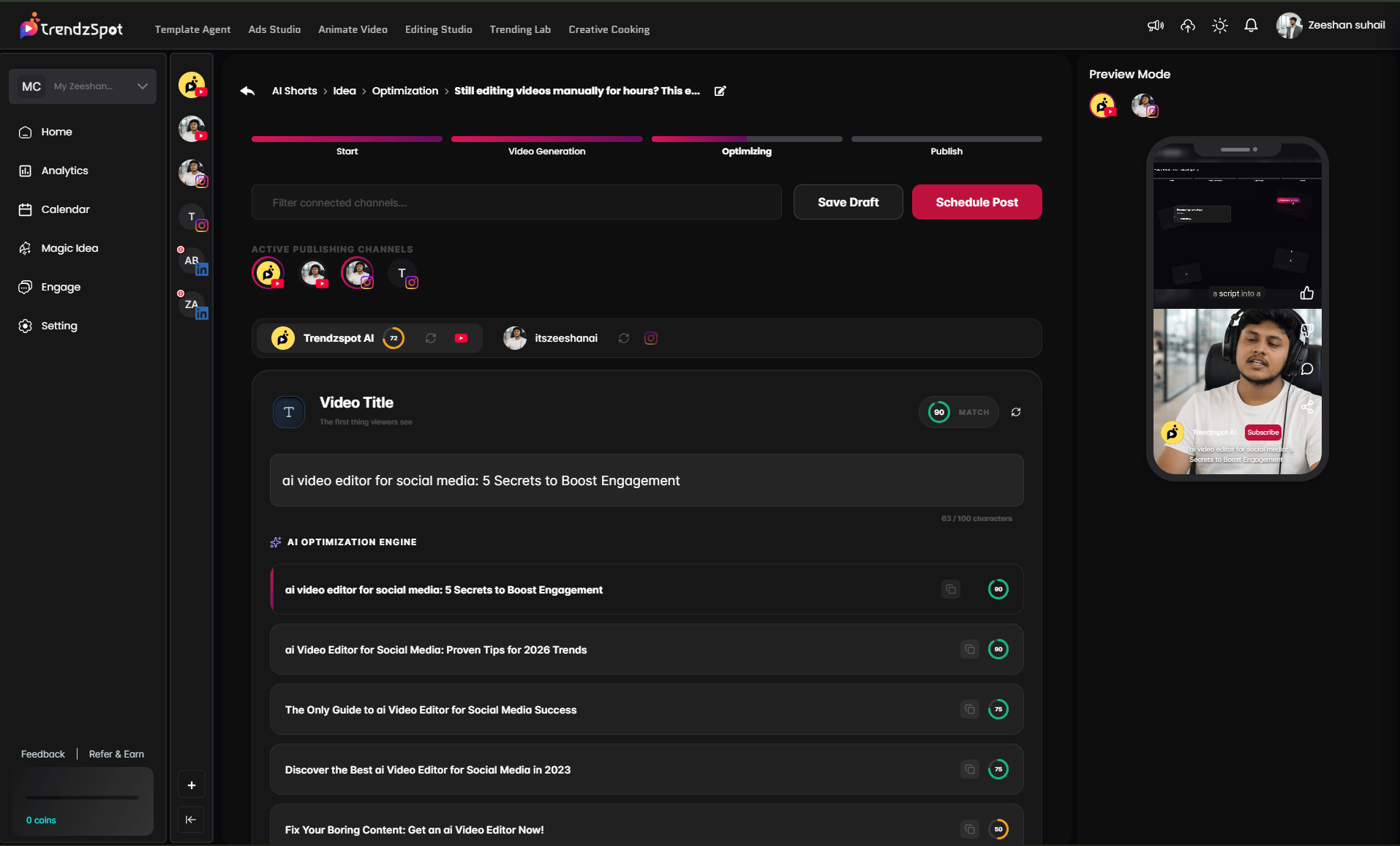
- Platform-specific title
- SEO-structured description
- Keyword tags tailored to each platform
- Subtitles synced to audio
- AI-generated thumbnail
Step 6: Publish to Multiple Platforms
Step 6: Publish to Multiple Platforms
With one click, push your fully optimized video to all connected platforms simultaneously — YouTube, TikTok, Instagram, and more.Your video, title, description, keywords, subtitles, and thumbnail are delivered to each platform automatically, formatted correctly for each one. No downloading, re-uploading, or switching between apps.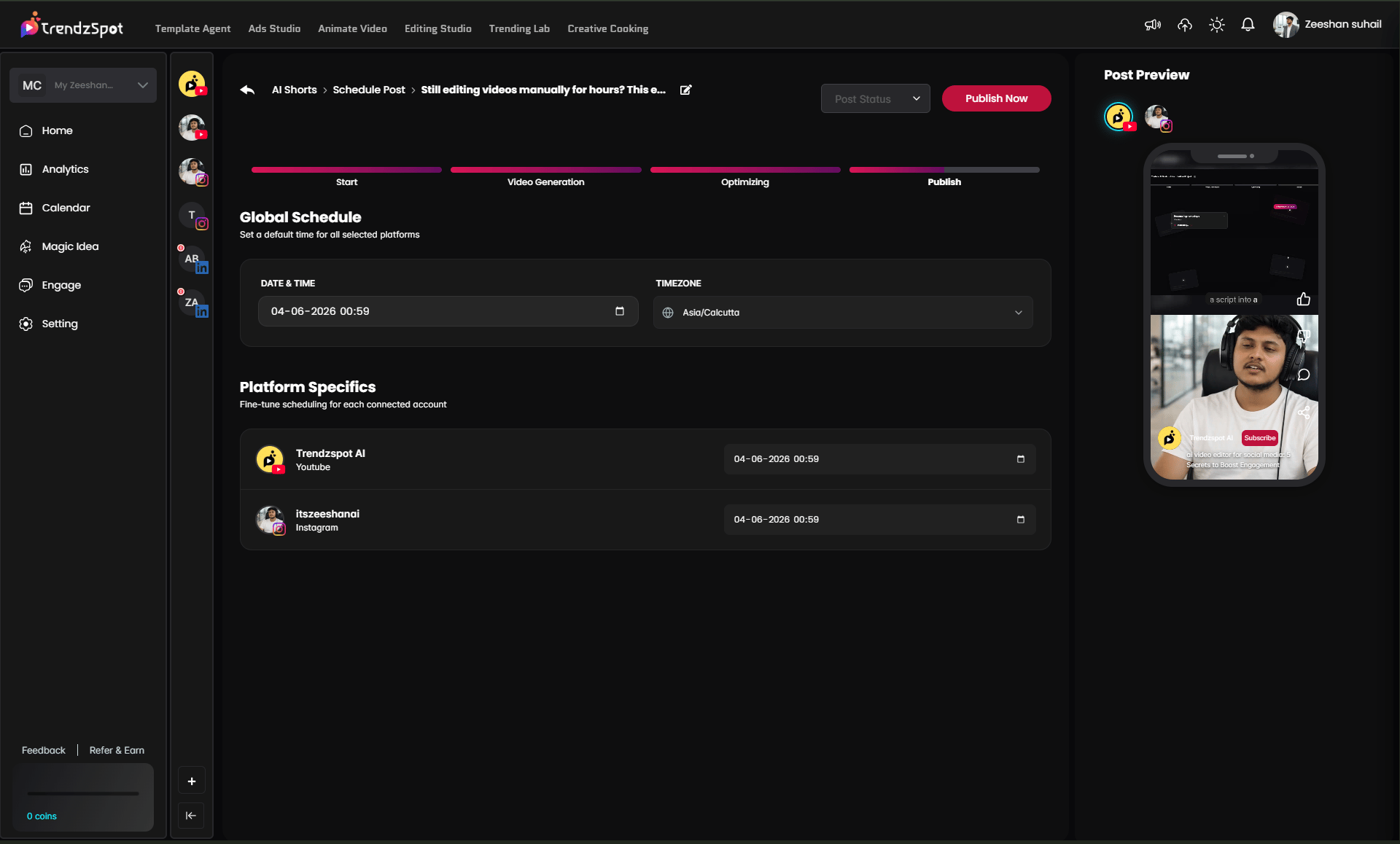
Flow 2: Audit an Existing Post:
Use this when you have a new video ready to publish and want AI to generate the best possible title, description, keywords, subtitles, and thumbnail before it goes live.Step 1: Click "Audit"
Step 1: Click "Audit"
From the AI Optimization dashboard, click the Audit button on the left panel to open the audit workspace.
Step 2: Select Your Video to Audit
Step 2: Select Your Video to Audit
u have two ways to bring in your existing video:
- Paste a post URL — copy and paste any published YouTube video link directly into the field
- Select from your connected channel — browse your linked YouTube channel and pick any video from your library
Step 3: Review Your Full Rank Pilot Audit Report
Step 3: Review Your Full Rank Pilot Audit Report
The audit generates a complete Rank Pilot Audit Statement — a detailed, scored breakdown of every element affecting your video’s performance. Here is everything the report covers:Overall Scores:
- Overall Video Score
- SEO Optimization score
- Thumbnail Performance score
- Thumbnail
- Title
- Hook
- Script quality
- Topic demand
- Weak tags → Add keywords like “Crime Boss gameplay”, “open world games” → Improved discoverability
- Low engagement → Add end-of-video CTAs asking viewers questions → Higher interaction metrics
- Poor thumbnail → Redesign with vibrant colors and bold visuals → Increased click-through rate
- Target keyword volume, trend, and competition level
- Placement audit — checks whether your keyword appears in the title start, title overall, description start, tags, spoken in first 30 seconds, and filename
- Secondary keyword opportunities with volume and competition data
- Target demographics breakdown
- Traffic source recommendations
- Content sentiment analysis
- Competitive gap analysis
Step 4: Apply Quick Fixes
Step 4: Apply Quick Fixes
After reviewing your audit report, apply improvements directly without leaving TrendzSpot AI:
- Rewritten title pushed back to YouTube
- Updated description with SEO structure
- New tags and keywords applied
- Regenerated thumbnail replacing the old one
Step 5: Publish to Multiple Platforms
Step 5: Publish to Multiple Platforms
With one click, push your fully optimized video to all connected platforms simultaneously — YouTube, TikTok, Instagram, and more.Your video, title, description, keywords, subtitles, and thumbnail are delivered to each platform automatically, formatted correctly for each one. No downloading, re-uploading, or switching between apps.
Next steps
Now that you have your docs running, explore these key features:Connect your social accounts
Link YouTube, TikTok, and Instagram to enable direct publishing without leaving the platform.
Publish across multiple platforms
Distribute a single piece of content to all your channels simultaneously from your AI Board.
Automate with Template Agents
Build reusable AI workflows so your content pipeline runs on autopilot. Set it up once, repeat it forever.
Track performance with AI analytics
Monitor views, watch time, subscriber growth, and revenue trends in one unified dashboard.
The bottom line: Most creators waste 80% of their time on tasks that AI can handle in minutes. TrendzSpot AI Core Tools exist to give you that time back—so you can focus on ideas, not execution.