

How to generate a video:
Create professional videos from simple prompts using advanced AI video generation models like Seedance 2.0.Step 1: Click "Create Video."
Step 1: Click "Create Video."
Head to the Video Creation section from your TrendzSpot AI dashboard and click the Create Video Card under Quick Start. This opens the video creation workspace where you’ll configure everything for your video from start to finish.\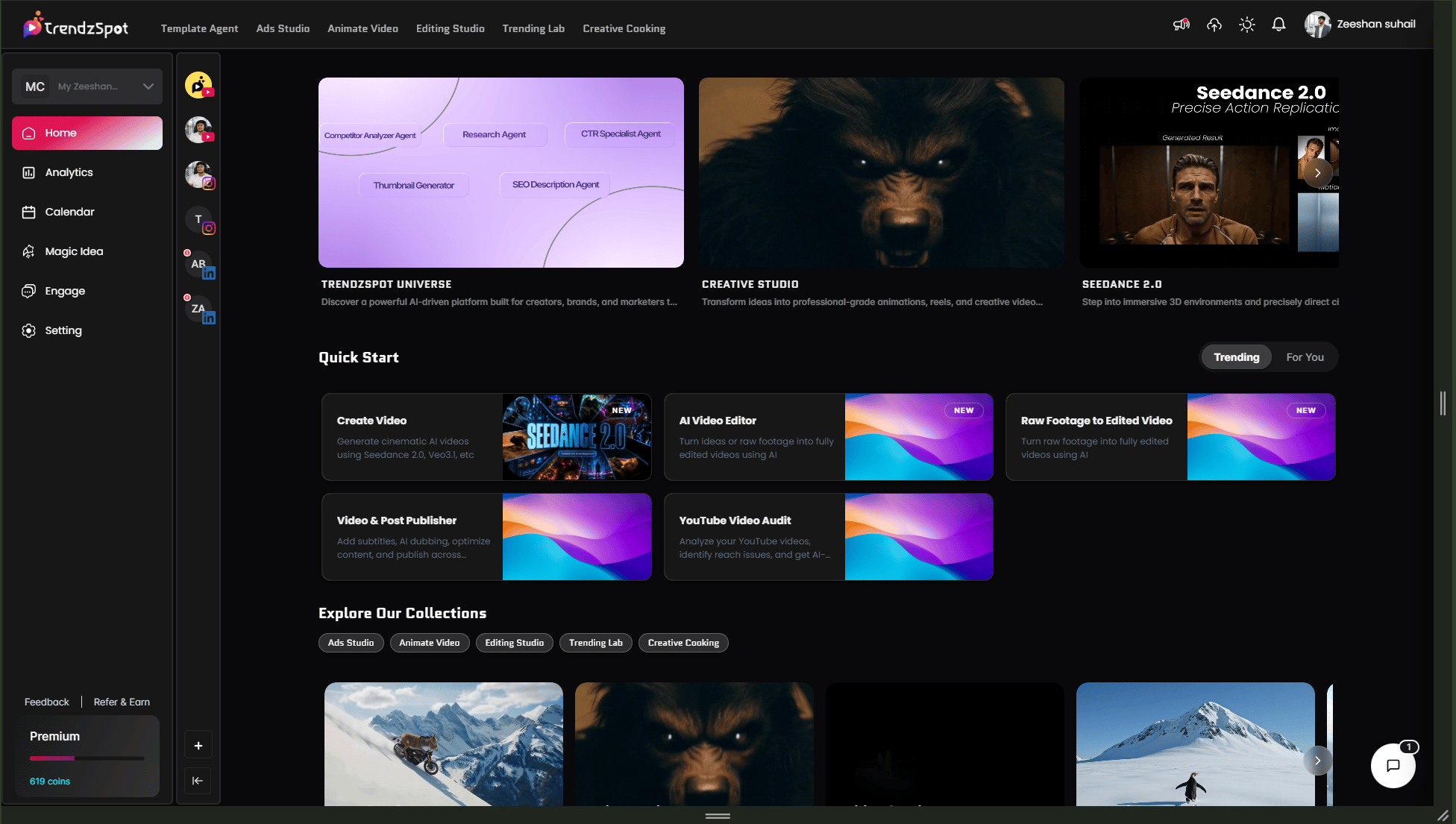
Step 2: Choose the Model and Fill the Fields
Step 2: Choose the Model and Fill the Fields
This is where you set up your video generation. You have full control over the AI model and inputs.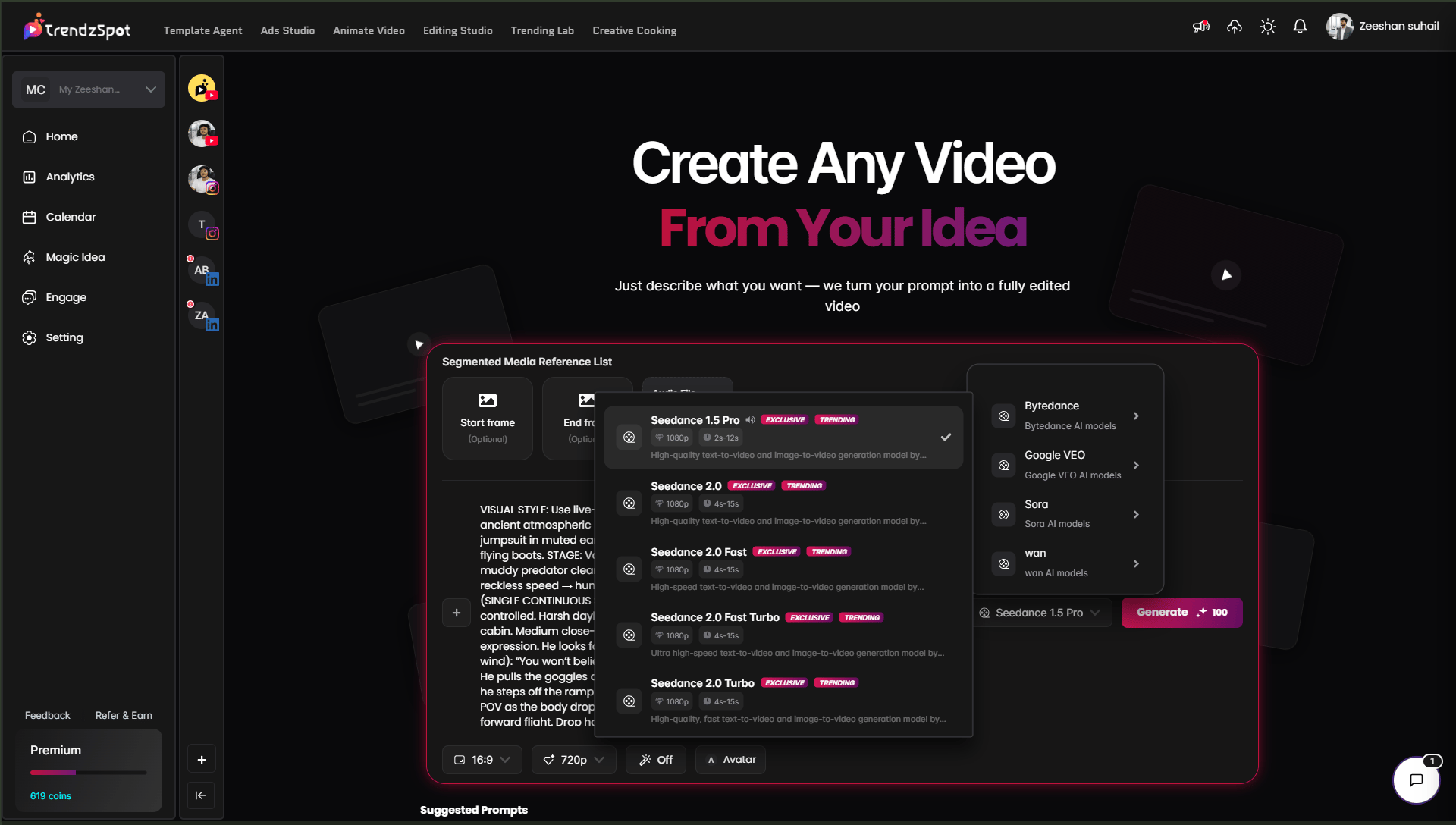
- Choose your model — Select Seedance 2.0 for high-quality, cinematic AI video generation.
- Write your prompt—Describe exactly what you want the video to show. Be specific about the scene, tone, style, and message.
- Reference video (optional) — Upload an existing video to guide the style or motion of the output.
- Reference images (optional) — Add images to influence the visual look and aesthetic of your video.
- First frame & last frame (optional) — Upload a specific starting image and ending image to control exactly how your video opens and closes.
Pro tip: The more inputs you provide, the more control you have over the output. Even one reference image can dramatically improve the visual consistency of your video.
Step 3: Confirm the Prompt and click "Generate."
Step 3: Confirm the Prompt and click "Generate."
Review your prompt one final time — make sure it clearly describes what you want. Once you’re happy, click Generate.Seedance 2.0 will process your inputs and build your video. When it’s ready, your completed video appears alongside a performance chart showing predicted engagement signals and quality metrics.From here you can preview the video, regenerate if needed, or move forward to optimization.\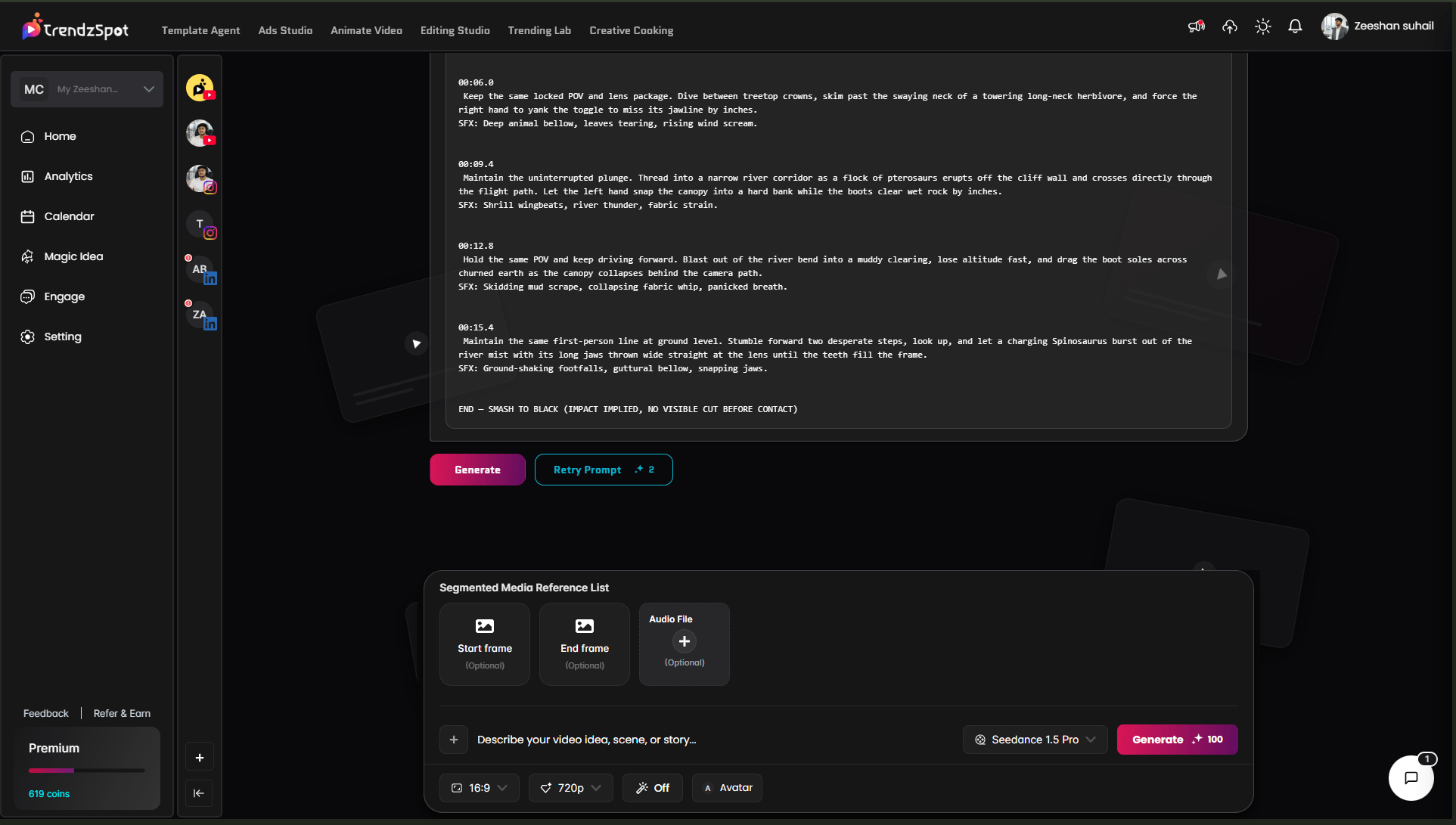
Step 4: Optimize the Post
Step 4: Optimize the Post
Before publishing, optimize your video’s metadata to maximize reach and discoverability on every platform.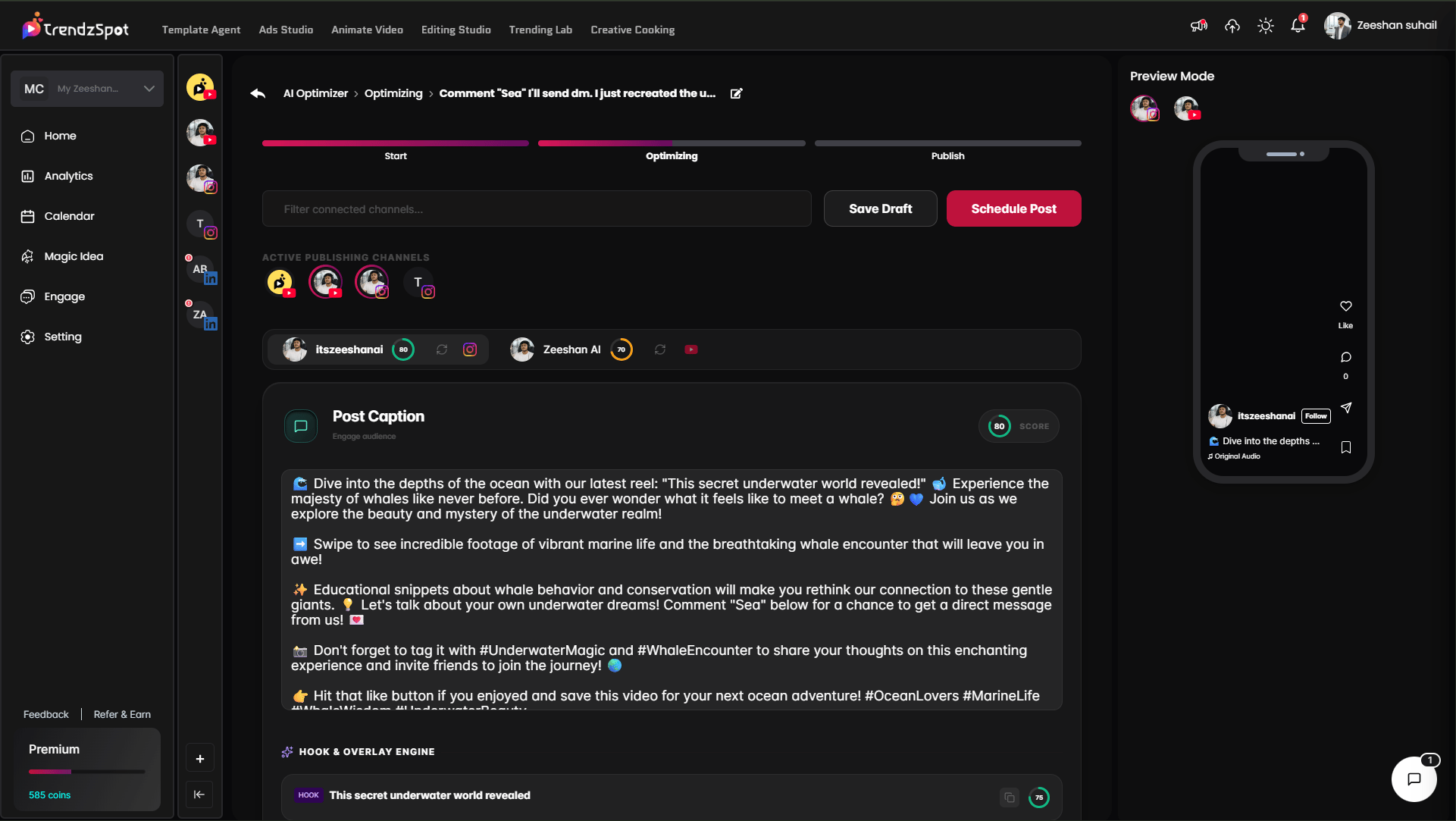
- Title — AI suggests a platform-optimized title based on your prompt and target audience. Edit it to match your voice.
- Description — A full video description is generated automatically, structured for SEO with relevant context and keywords.
- Keywords — Platform-specific tags and keywords are recommended based on your content topic and current search trends.
Pro tip: Don’t skip this step. A great video with a weak title gets buried. Spend 2 minutes reviewing the AI suggestions and customizing them — it directly affects how many people find your content.
Step 5: Publish to Multiple Platforms
Step 5: Publish to Multiple Platforms
With one click, distribute your video across all your connected social platforms simultaneously — YouTube, TikTok, Instagram, and more.No downloading, re-uploading, or switching between apps. Your video, title, description, and keywords are pushed to each platform automatically, formatted correctly for each one.
Pro tip: Connect all your social accounts in Settings before you start creating. The moment your video is ready, publishing takes seconds.
Customer Generated:
Next steps
Now that you have your docs running, explore these key features:Connect your social accounts
Link YouTube, TikTok, and Instagram to enable direct publishing without leaving the platform.
Publish across multiple platforms
Distribute a single piece of content to all your channels simultaneously from your AI Board.
Automate with Template Agents
Build reusable AI workflows so your content pipeline runs on autopilot. Set it up once, repeat it forever.
Track performance with AI analytics
Monitor views, watch time, subscriber growth, and revenue trends in one unified dashboard.
The bottom line: Most creators waste 80% of their time on tasks that AI can handle in minutes. TrendzSpot AI Core Tools exist to give you that time back—so you can focus on ideas, not execution.