> ## Documentation Index
> Fetch the complete documentation index at: https://docs.trendzspot.com/llms.txt
> Use this file to discover all available pages before exploring further.
# Magic Idea
> Capture, organize, and transform your content ideas into action — all in one place.
Magic Idea is your AI-powered content planning board. It works like a Kanban board where every idea moves through a clear pipeline from concept to completion. Instead of losing ideas in notes apps or spreadsheets, everything lives in one organized workspace — with AI helping you generate, research, and develop each idea before it becomes a video.
### How the Board Works
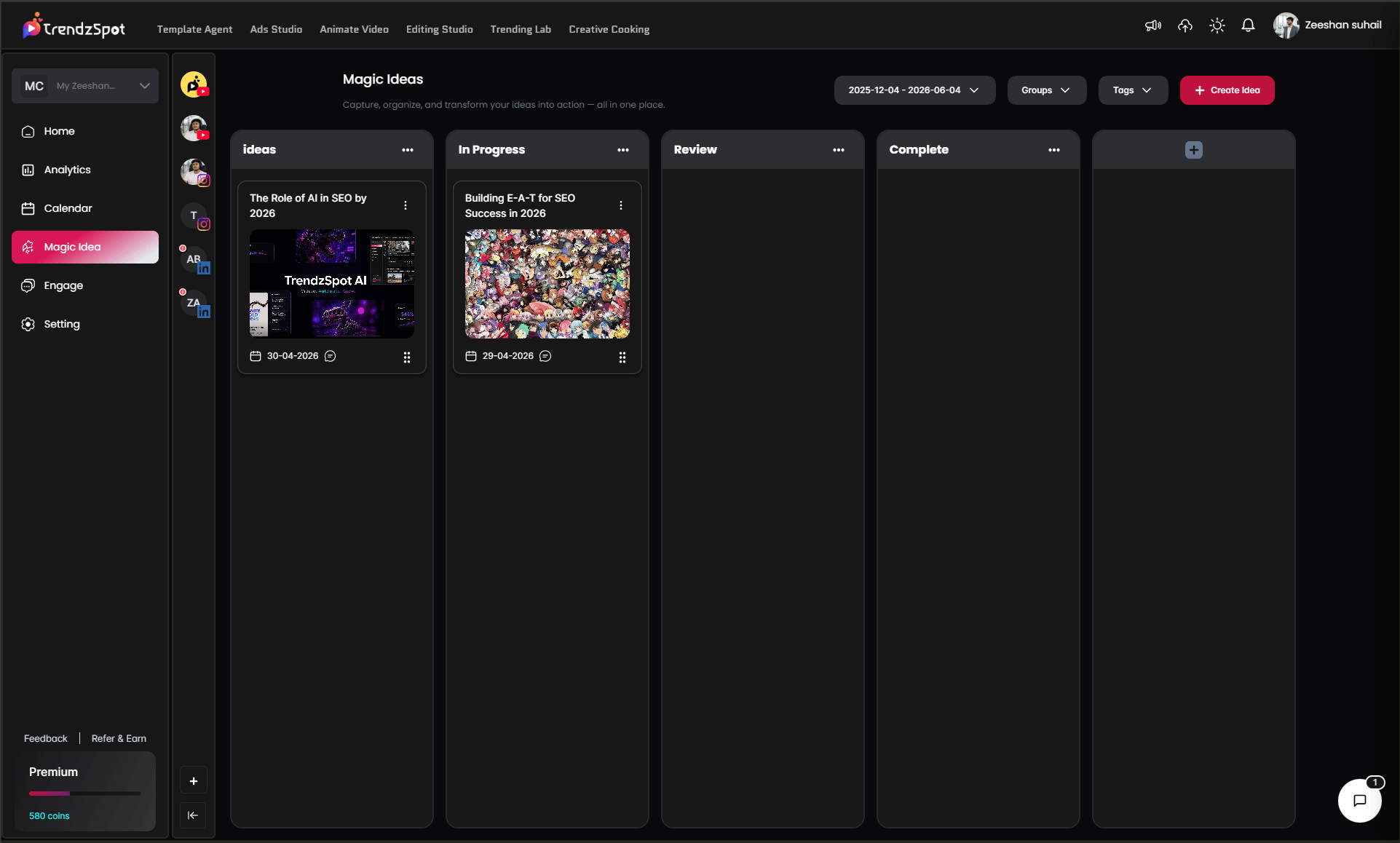
Your Magic Idea board has four stages. Every idea you create starts in **Ideas** and moves right as it progresses:
* **Ideas** — fresh concepts waiting to be developed
* **In Progress** — ideas you are actively working on
* **Review** — content ready to be checked before production
* **Complete** — finished ideas that have been executed
You can filter your board by **date range**, **groups**, and **tags** to stay organized as your idea library grows. Add new columns anytime using the **+** button on the right.
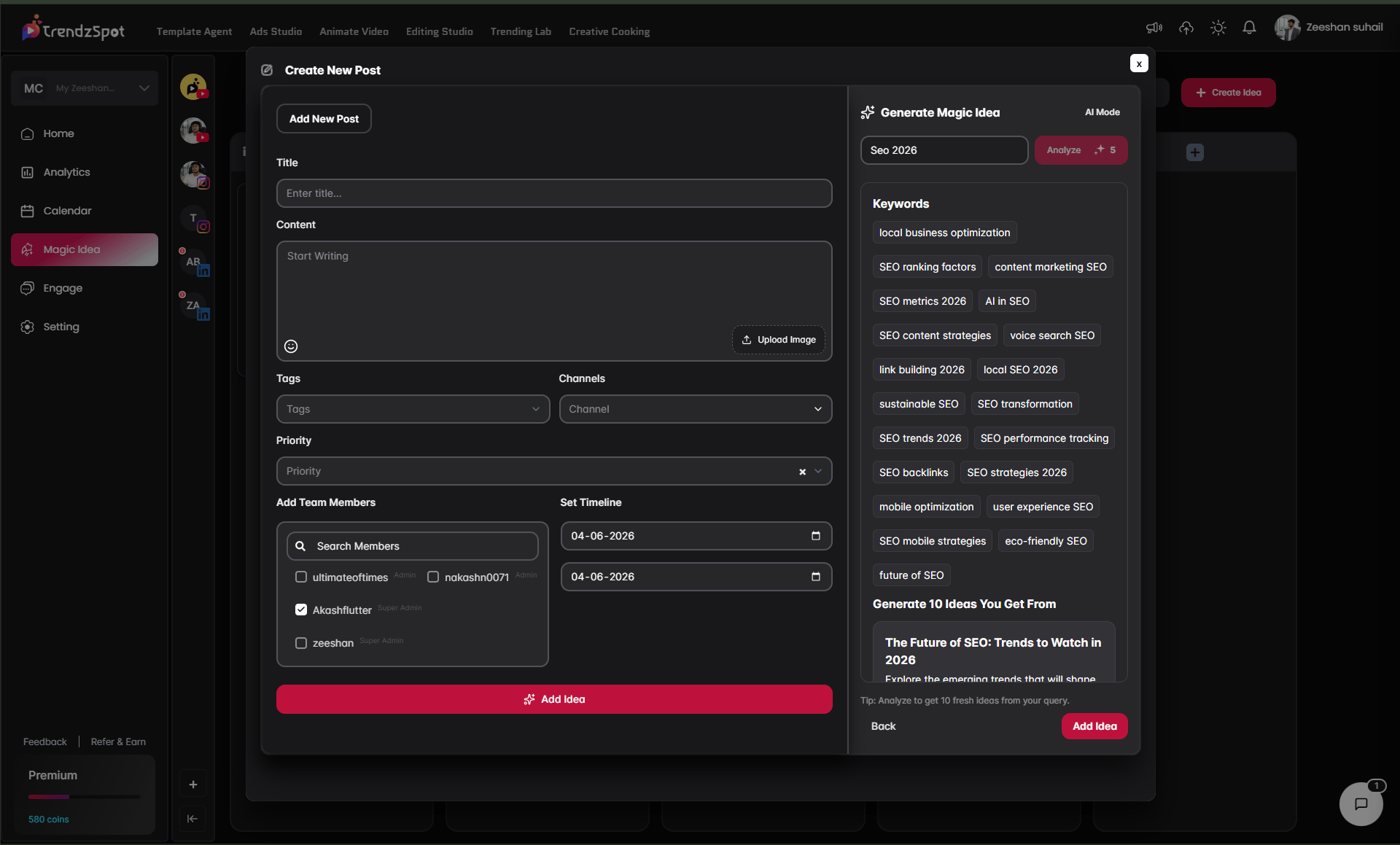
"From the left sidebar, open the Magic Idea Board. Then click the + Create Idea button in the top-right corner. This opens the Create New Post panel, where you can create and configure your content idea."
On the left side of the panel, complete your idea card:
* **Title** — give your idea a clear, specific name. Example: *"The Role of AI in SEO by 2026"*
* **Content** — write your notes, outline, script draft, or any details about the idea. Upload a reference image using the **Upload Image** button if needed
* **Tags** — add tags to categorize and filter your ideas easily
* **Channels** — select which platform or channel this idea is for
* **Priority** — set the urgency level so your team knows what to work on first
* **Add Team Members** — search and assign team members to this idea. Each member is shown with their role (Admin, Super Admin) so the right people are looped in from the start
* **Set Timeline** — set a start date and end date to keep your content schedule on track
Once everything is filled in, click **Add Idea** to save it to your board.
On the right side of the Create New Post panel, the **Generate Magic Idea** panel powered by **AI Mode** helps you develop and expand your idea using real keyword intelligence.
**How to use it:**
1. **Type your topic** into the search field. Example: *"SEO 2026"*
2. Click **Analyze** — AI researches your topic and returns:
**Keywords** — a full list of relevant keywords your audience is searching for. Example for "SEO 2026":
* local business optimization
* SEO ranking factors
* content marketing SEO
* AI in SEO
* voice search SEO
* link building 2026
* SEO trends 2026
* SEO performance tracking
* mobile optimization
* future of SEO
* and many more
**Generate 10 Ideas You Get From** — AI generates 10 fully developed content idea titles based on your topic and the keyword data. Example: *"The Future of SEO: Trends to Watch in 2026"* — each with a description to help you understand the angle and opportunity.
3. **Click any idea** to instantly populate your title and content fields with AI-generated content
4. Click **Add Idea** to save your chosen idea directly to the board
Pro tip: Don't just use the first idea AI suggests. Scroll through all 10 — the strongest video ideas are often further down the list where the angles are more specific and less competitive.
Once your ideas are on the board, managing them is simple:
* **Drag and drop** any card from one column to the next as it progresses — Ideas → In Progress → Review → Complete
* **Click the three dots** on any card to edit, duplicate, delete, or change its status
* **Click a card** to open the full idea details, add notes, update the timeline, or reassign team members
* **Use the date filter** at the top to view ideas within a specific time window
* **Use Groups and Tags** to filter the board and focus on specific content categories or team assignments
**Pro tip: Review your board every Monday. Move anything stuck in Ideas for more than a week into In Progress or archive it — a clean board leads to faster execution and fewer missed opportunities.**
Now that you have your docs running, explore these key features:
Link YouTube, TikTok, and Instagram to enable direct publishing without leaving the platform.
Distribute a single piece of content to all your channels simultaneously from your AI Board.
Build reusable AI workflows so your content pipeline runs on autopilot. Set it up once, repeat it forever.
Monitor views, watch time, subscriber growth, and revenue trends in one unified dashboard.
**The bottom line:** Most creators waste 80% of their time on tasks that AI can handle in minutes. TrendzSpot AI Core Tools exist to give you that time back—so you can focus on ideas, not execution.