> ## Documentation Index
> Fetch the complete documentation index at: https://docs.trendzspot.com/llms.txt
> Use this file to discover all available pages before exploring further.
# Calendar
> Manage your ideas and tasks efficiently with a clear view of upcoming deadlines and scheduled posts across all your connected social media channels.
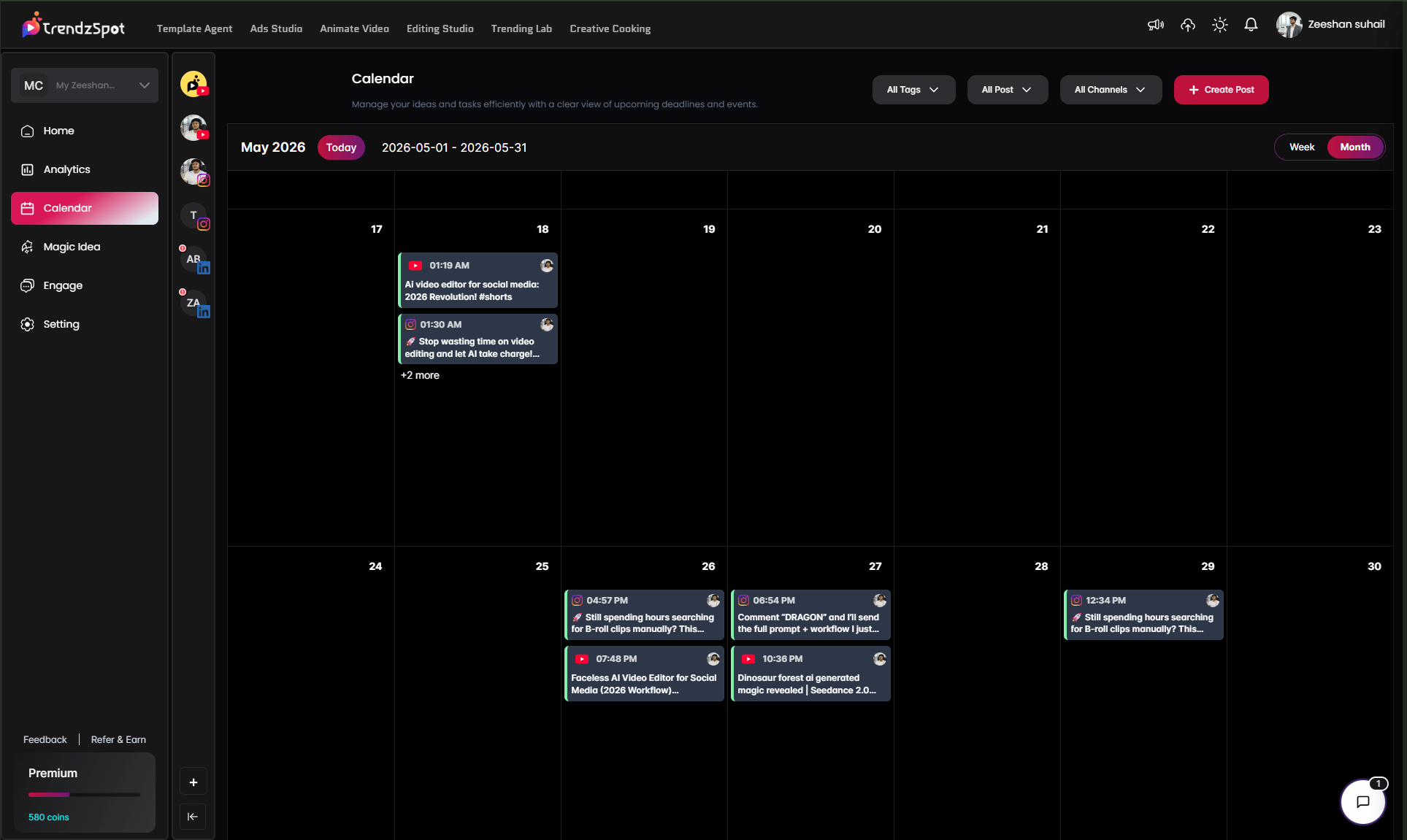
The Calendar is your content scheduling hub. Every post you create — whether generated by AI or uploaded manually — appears here with its scheduled date and time. You get a full visual overview of what's going out, when, and to which platform, so you never miss a publish date and always maintain a consistent posting schedule.
**This feature is completely free for all users.** No credits, no coins, no plan required. Every TrendzSpot AI account gets full access to the Calendar and manual post scheduling at no cost.
### The only other place worth adding a note is right at the **Create Post** step:
Everything else in the page stays exactly the same from the tutorial video placeholder all the way through to the managing posts section.
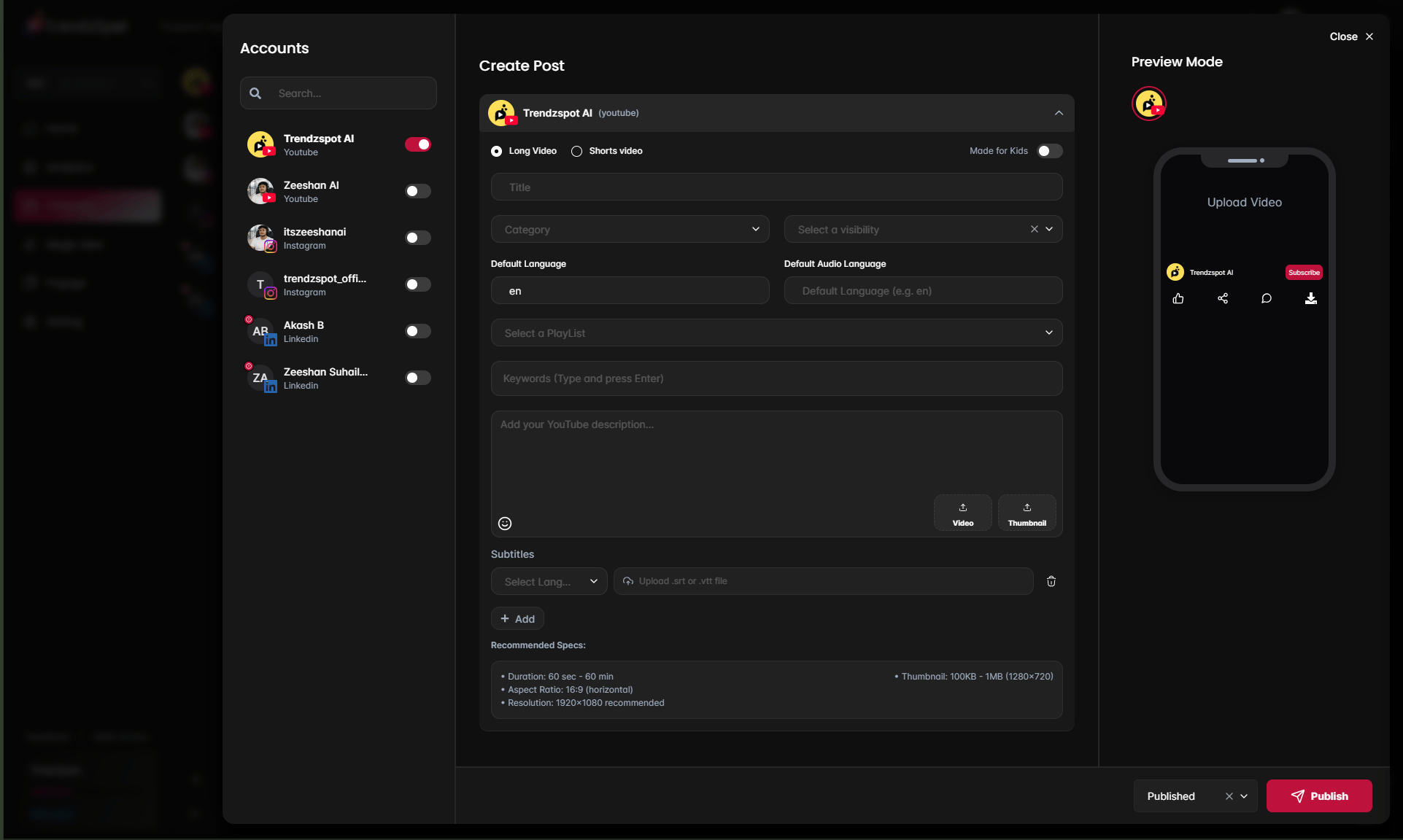
To manually schedule a new post, click the **+ Create Post** button in the top right corner. This opens the full post creation panel with a **live Preview Mode** on the right so you can see exactly how your post will look before it goes live.
On the left side of the panel, you'll see all your connected social media accounts with a toggle next to each one:
* Trendzspot AI — YouTube
* Zeeshan AI — YouTube
* itszeeshanai — Instagram
* trendzspot\_offi... — Instagram
* Akash B — LinkedIn
* Zeeshan Suhail... — LinkedIn
**Toggle on** the account you want to publish to. You can enable multiple accounts to publish the same post across platforms simultaneously.
The center panel shows the post creation form, tailored to the platform of your selected account. For YouTube it includes:
**Video Type:**
* **Long Video** — standard YouTube video
* **Shorts Video** — vertical short-form content
* **Made for Kids** toggle — enable if your content is directed at children
**Post Fields:**
* **Title** — enter your video title
* **Category** — select the most relevant YouTube category for your content
* **Visibility** — choose Public, Private, or Unlisted
* **Default Language** — set the primary spoken language of your video
* **Default Audio Language** — set the audio language separately if different
* **Playlist** — assign the video to an existing playlist on your channel
* **Keywords** — type your tags and press Enter after each one
* **Description** — write your full YouTube description with links, timestamps, and CTAs
**Upload:**
* **Video** — upload your video file directly
* **Thumbnail** — upload your custom thumbnail (recommended: 1280×720, 100KB–1MB)
**Subtitles:**
* Select a language and upload your **.srt or .vtt subtitle file** for automatic caption embedding
**Recommended Specs shown at the bottom:**
* Duration: 60 seconds – 60 minutes
* Aspect Ratio: 16:9 horizontal
* Resolution: 1920×1080 recommended
* Thumbnail: 100KB–1MB at 1280×720
Click **+ Add** to add additional subtitle tracks or language versions.
Pro tip: Don't just use the first idea AI suggests. Scroll through all 10 — the strongest video ideas are often further down the list where the angles are more specific and less competitive.
The **Preview Mode** panel on the right shows a live mock-up of how your post will appear on the platform — exactly as your audience will see it. For YouTube it shows the video player, channel name, subscribe button, and engagement icons.
Review the preview carefully before publishing. Check that your thumbnail looks sharp, your title is clear, and the overall presentation matches your brand.
At the bottom right of the panel, set your publish status:
* **Published** — post goes live immediately on the selected platforms
* **Scheduled** — choose a specific date and time for the post to go live automatically
* **Draft** — save the post without publishing to finish it later
Once ready, click the **Publish** button to send your post live or lock in your scheduled time.
Pro tip: Build your calendar at least one week ahead. A full week of scheduled posts visible on your calendar means you never scramble for content last minute — and consistency is the single biggest driver of channel growth.
Link YouTube, TikTok, and Instagram to enable direct publishing without leaving the platform.
Distribute a single piece of content to all your channels simultaneously from your AI Board.
Build reusable AI workflows so your content pipeline runs on autopilot. Set it up once, repeat it forever.
Monitor views, watch time, subscriber growth, and revenue trends in one unified dashboard.
**The bottom line:** Most creators waste 80% of their time on tasks that AI can handle in minutes. TrendzSpot AI Core Tools exist to give you that time back—so you can focus on ideas, not execution.